
EZCast Wire Quick Start Guide
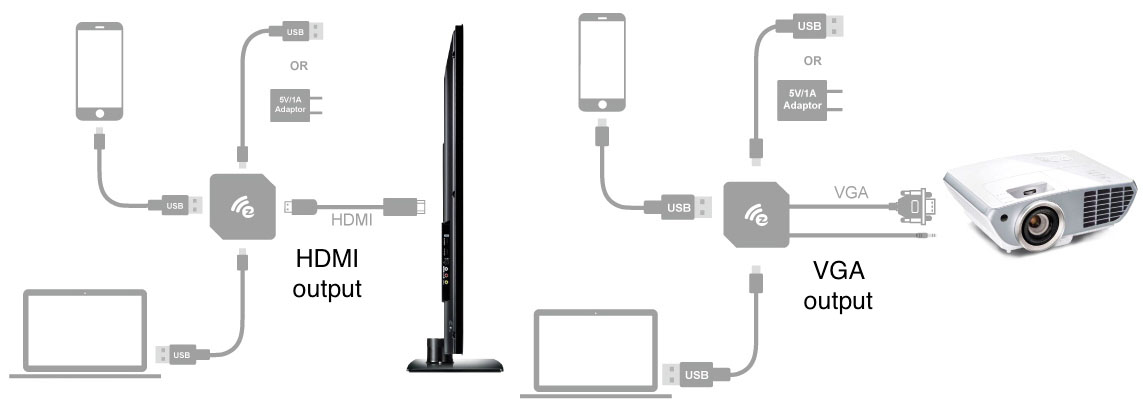
產品安裝示意圖
1. EZCast Wire 與電視、螢幕顯示器或投影機連接:
請將 EZCast Wire 的 HDMI 輸出端頭與您的電視、螢幕顯示器或投影機中的任一個 HDMI 連接埠進行連接。若您的 EZCast Wire 有 VGA 輸出,您也可以使用 VGA 連接。
2. EZCast Wire 與設備連接:
(a) 與 Mac 或 Microsoft Windows 連接:
把 MicroUSB 線插入 EZCast Wire,再把線的另一端 (USB Type-A) 插入 Mac 或 Microsoft Windows。
(b) 與 iOS 或 Android 連接:
把 MicroUSB 線插入 EZCast Wire,而線的另一端 (USB Type-A) 插入外部 5V/1A 的電源適配器。將 Lightening 線插入 iOS 設備, 或者把 MicroUSB 線插入 Android 設備,再把線的另一端 (USB Type-A) 插入 EZCast Wire。
3. 將電視、螢幕顯示器或者投影機切換到正確的 HDMI 訊號輸入源。
正確設定 HDMI 輸入信號源後,顯示設備螢幕上將會出現設定畫面。
产品安装示意图
1.EZCast Wire 与电视、显示器或投影仪的连接:
请将EZCast Wire的HDMI输出端连接您的电视、显示器或投影机的任何一个HDMI输入端口。若您的 EZCast Wire 有 VGA 输出, 您也可以使用 VGA 连接。
2.EZCast Wire 与设备的连接:
(a) 与 Mac 或 Microsoft Windows 连接:
把 micro USB 线插入 EZCast Wire, 再把线的另一端 (USB Type-A) 插入 Mac 或 Microsoft Windows。
(b) 与 iOS 或 Android 连接:
把 micro USB 线插入 EZCast Wire, 而线的另一端 (USB Type-A) 插入外部5V/1A的电源适配器。然后把 Lightening 线插入 iOS 设备, 或者把 micro USB 线插入 Android 设备, 再把线的另一端 (USB Type-A) 插入 EZCast Wire。
3.将电视、显示器或则投影仪切换到正确的HDMI输入信号源:
如果HDMI 输入信号源设置正确,你应该看到显示设备屏幕上出现设置界面。
Hardware Installation:
1.Connect EZCast Wire to TV, Monitor, or Projector:
Connect EZCast Wire into any HDMI input port on your TV, Monitor, or Projector. If your EZCast Wire contains an VGA port, you may also use it for VGA display.
2.Connect EZCast Wire to your device:
(a) Connect with Mac or Microsoft Windows:
Plug one end (smaller one, micro USB) of the USB cable into your EZCast Wire and the other end of the USB cable (bigger one, USB Type-A) into your Mac or Microsoft Windows.
(b) Connect with iOS or Android:
Plug one end (smaller one, micro USB) of the USB power cable into your
EZCast Wire and the other end of the USB power cable (bigger one, USB Type-A) into an external 5V1A power adapter. Use the cable of your device (lightening for iOS, micro USB for Android) to connect iOS/Android device and your EZCast Wire (bigger one, USB Type- A)
3.Switch to the correct HDMI (VGA) source:
If the HDMI (VGA) source is set correctly, you should see the EZCast Wire setup screen.

Watch setup videos

Download full user manual

Download Quick Start Guide

Subscribe for
more demo videos