- {{get_started_text}}
- {{manual_text}}
- {{application_text}}
- {{voice_control_text}}
- {{firmware_text}}
- FAQ

產品安裝示意圖
以 USB 供電
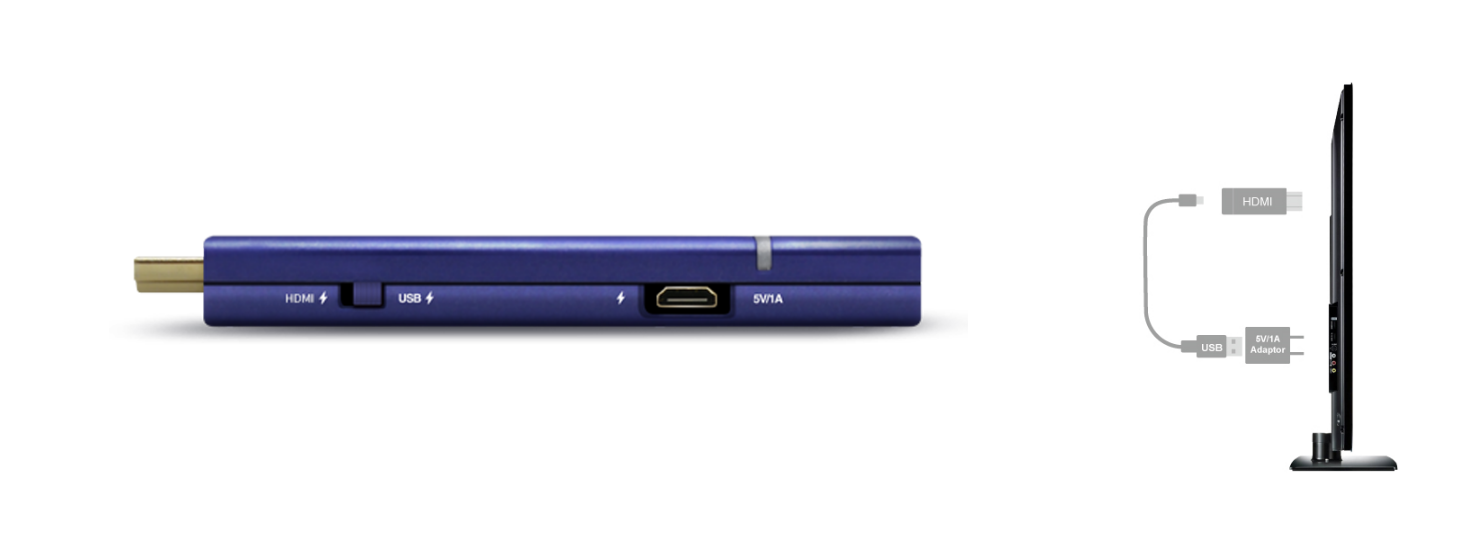
1.切換按鍵選擇以 USB 供電
2.將 EZCast 4K 插入電視、螢幕顯示器或投影機的 HDMI 連接埠。
3.請把 USB 電源線的 MicroUSB 接頭連接到 EZCast 4K 的直流電源端口,並把電源線另一端的 USB 接頭外接 5V/1A 的電源適配器以進行供電。
4.打開電視、螢幕顯示器或投影機,切換至正確的 HDMI 訊號輸出源後,將聽到 EZCast 獨有的開機⾳樂。EZCast 主畫面將會出現在螢幕上,螢幕上亦有 EZCast 網路名稱和密碼(PSK)。
注意:為使 5G 無線連接更穩定,建議使用外接 5V/1A 的電源適配器為 EZCast 4K 供電。
以 HDMI 供電
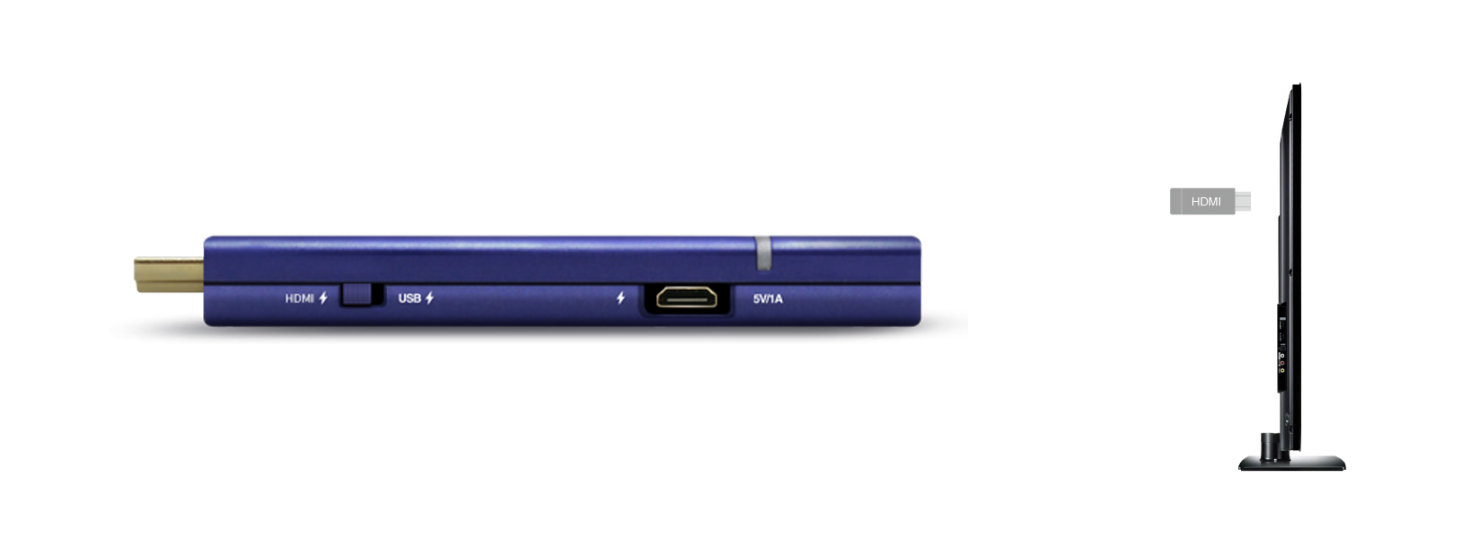
1.切換按鍵選擇以 HDMI 供電
2.將 EZCast 4K 插入電視、螢幕顯示器或投影機的 HDMI 連接埠。
3.打開電視、螢幕顯示器或投影機,切換至正確的 HDMI 訊號輸出源後將聽到 EZCast 獨有的開機⾳樂,EZCast 主畫面將會出現在螢幕上。螢幕上亦有 EZCast 網路名稱和密碼(PSK)。
注意:HDMI 輸出源需提供 900 毫安的直流電流給 EZCast 投影器。
产品安装示意图
USB电源
1.拔动按键选择USB电源
2.请把同屏器插入电视机,显示器或者投影仪的HDMI接口
3.请把USB电源线的迷你USB端接到EZCast 4K同屏器的直流电源接口,把线的另一端USB接到外接5V/1A的适配器供电
4.打开电视机,显示器或者投影仪,选择正确的HDMI视频输出频道会听到EZCast独有的开机⾳乐,随后EZCast主 界面将会出现在屏幕上。屏幕上有EZCast網络名称和密码(PSK)
注意:为5G无线连接更稳定,建议使用外接5V/1A的适配器给EZCast 4K供电。
HDMI电源
1.拔动按键选择HDMI电
2.把同屏器插入您的电视机,显示器或者投影仪的HDMI接口
3.打开电视机,显示器或者投影仪,选择正确的HDMI视频输出频道会听到EZCast独有的开机音乐,随后EZCast主界面将会出现在屏幕上。屏幕上有EZCast網络名称和密码(PSK)
注意:请给HDMI输出的EZCast 同屏器提供900毫安的直流电流。
Hardware Installation:
Power via USB
1.Switch button to choose USB powered.
2.Plug dongle into HDMI port on your TV, Monitor, or Projector.
3.Plug one end (Micro USB) of the USB cable into your 4K dongle DC power port and the other end of the cable (USB Type-A) into an external 5V/1A power adapter
4.Power On your TV, Monitor or Projector, if the HDMI source is set correctly, a welcome tone follow by EZCast main menu setup screen will appear on your screen. You could see the SSID and Password (PSK) on screen.
Note: Please be noted that 1Amp current supply is highly recommended for reliable 5G Wi-Fi connection of the dongle.
Power via HDMI
1.Switch button to choose HDMI powered.
2.Plug dongle into HDMI input port on your TV, Monitor, or Projector.
3.Power On your TV, Monitor or Projector, if the HDMI source is set correctly, a welcome tone follow by EZCast main menu setup will appear on your screen. You could see the SSID and Password (PSK) on screen.
Note: Please be noted the HDMI power source must provide 900mA or more current.